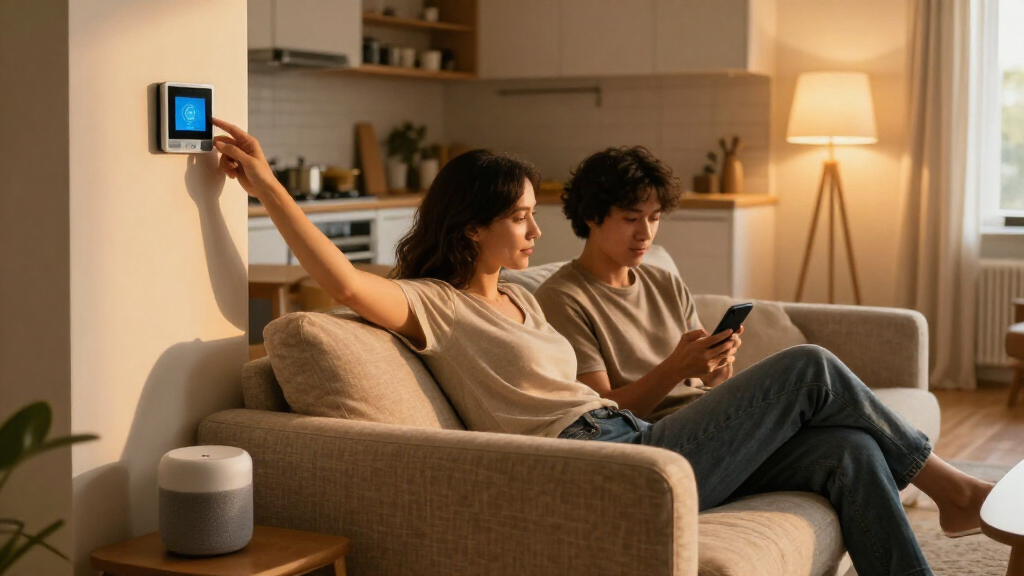

Set up smart home devices so both partners can control them, understand what they do, and agree on when they run. This guide is for couples starting with smart speakers, lights, plugs, thermostats, or door sensors. Allow 1-2 hours for a few devices, plus extra time if your Wi-Fi or accounts need attention.

Get gifts for the two of you delivered free with Prime
- Fast, free delivery on millions of items
- Prime Video, Amazon Music and more included
- Member-only deals all year

Smart Home Starter Kit with Echo Hub, Amazon Smart Plug, and 4 Smart Bulbs
- ✔ Included: Echo Hub, Amazon Smart Plug, and four Amazon Basics Smart Bulbs
- ✔ Display: 8-inch touchscreen, 1280 x 800
- ✔ Connectivity: Wi-Fi, Bluetooth, Zigbee, Thread, Matter, Amazon Sidewalk

Amazon Echo Hub (Newest Model), 8" Smart Home Control Panel with Alexa+
- ✔ Display: 8-inch touchscreen, 1280 x 800
- ✔ Connectivity: Wi-Fi, Bluetooth, Zigbee, Thread, Matter, Sidewalk
- ✔ Power: USB-C PD; PoE support

Amazon Echo Show 5 (Newest Model) Smart Display
- ✔ Display: 5.5-inch touchscreen
- ✔ Camera: 2 MP with built-in shutter
- ✔ Speaker: Full-range 1.75-inch built-in speaker
Difficulty: Beginner | Time: 1-2 hours
What You’ll Need
Tools & Materials:
- Smartphone for each partner
- Home Wi-Fi name and password
- Compatible smart devices and their power supplies
- Manufacturer apps and one chosen smart home platform
- Access to the household router
Knowledge:
- Basic smartphone app use
- The Wi-Fi network name and password
- Which household account or email address will own the devices
Check each device’s compatibility with your chosen platform and Wi-Fi band before buying or opening it. Some devices require a 2.4 GHz network, a hub, or a specific phone operating system. Agree on account ownership and decide which controls each partner should have before setup.
Smart Home Starter Kit with Echo Hub, Amazon Smart Plug, and 4 Smart Bulbs
For couples building a connected home together, this bundle makes the first decisions less fragmented. It pairs an 8-inch Echo Hub with an Amazon Smart Plug and four smart bulbs, so lighting and one plug-in device can become part of shared routines without assembling the basics one item at a time. That makes it more immediately useful than the standalone Echo Hub, which provides the control panel but leaves compatible devices to you.The shared benefit is practical: couples can arrange controls around routines they both use, such as turning off selected lights at bedtime or switching on a lamp when they arrive home. The Echo Hub also supports Zigbee, Thread, and Matter, giving the setup room to grow beyond the included accessories. Ethernet and PoE support may help couples who want a tidy, fixed installation, though those options can require compatible equipment or planning.This is the strongest all-in-one entry point in our lineup, but the bundle’s included devices may not match every room or lighting preference. The hub is meant to stay powered in one place, so it cannot serve as a handheld controller around the home. Compared with the Show 5, it offers a larger control surface and more included smart home hardware, but it does not emphasize video calling or a compact bedside form. Choose it when the two of you want a shared foundation; skip it if you already have the lighting and plug you need.
Pros:
- Includes an Echo Hub, one smart plug, and four smart bulbs.
- The 8-inch touchscreen provides room for shared controls and routines.
- Supports Wi-Fi, Zigbee, Thread, Matter, and Bluetooth.
- Offers wall mounting and PoE support for a fixed installation.
Cons:
- The included bulbs and plug may not suit every room or setup.
- The hub is stationary and needs reliable power and internet.
- Bluetooth calling and some PIN-protected Bluetooth speakers are unsupported.
Best for: Couples setting up shared smart lighting and routines for the first time who want the hub and basic devices in one package.
Not ideal for: Couples who already own the devices they want to control, prefer a portable screen, or need lighting with specifications beyond the included bulbs.
Bottom line: For couples who want to build shared lighting routines from the ground up, this kit offers the most complete starting point in the lineup.
“For couples who want to build shared lighting routines from the ground up, this kit offers the most complete starting point in the lineup.”
Amazon Echo Hub (Newest Model), 8" Smart Home Control Panel with Alexa+
When a household already has connected lights, cameras, or other compatible devices, the standalone Echo Hub puts their controls on a shared 8-inch screen. Its customizable dashboard lets a couple decide which devices and routines should be easiest to reach, rather than relying solely on voice commands or separate apps. Compared with the starter kit, it offers the same general kind of central panel but leaves the choice of bulbs and plugs to you.That flexibility is especially useful if two people have different daily patterns but need a common way to manage the home. A dashboard can put frequent controls in view while keeping less-used devices available. Broad support for Wi-Fi, Zigbee, Thread, and Matter makes it a more adaptable control center than the Echo Show 5, though compatibility still depends on the individual devices and services.The Hub is designed for a fixed location, with wall or tabletop placement and PoE support for a cleaner installation when the necessary equipment is available. Its tradeoff is that it does not bring starter devices with it, so couples without compatible smart home gear will have to choose and set those up separately. Advanced Ring camera features, including event summaries, require a separate subscription. It suits households ready to organize what they own; for couples just starting out, the bundled kit offers a more direct path to shared routines.
Pros:
- Customizable dashboard can bring shared devices and routines together.
- Supports Wi-Fi, Bluetooth, Zigbee, Thread, and Matter.
- Can be wall-mounted or used on a tabletop.
- Includes physical microphone controls and supports PoE.
Cons:
- Does not include smart bulbs or a plug.
- Stationary design limits use around the home.
- Some Ring camera features require a separate subscription.
Best for: Couples who already own compatible smart home devices and want a customizable, centrally placed control panel.
Not ideal for: Couples who need included bulbs and a plug, want a portable screen, or do not want to plan a fixed installation.
Bottom line: This is the better control panel for couples with devices already in place, while the starter kit is more convenient for a new setup.
“This is the better control panel for couples with devices already in place, while the starter kit is more convenient for a new setup.”
Amazon Echo Show 5 (Newest Model) Smart Display
The Echo Show 5 fits couples who want a small shared screen for calls, camera feeds, and a handful of smart home controls. Its 5.5-inch touchscreen and compact footprint can work on a bedside table or kitchen counter where an 8-inch Echo Hub would take up more space. The built-in camera adds video calls, while a physical shutter and mic-off control give each person a direct way to limit access.As a smart home controller, it is more of a convenient sidekick than the centerpiece. It can manage Alexa-compatible devices and show camera feeds, but it does not list the Hub’s Zigbee, Thread, and Matter radios. Couples choosing between them should think about the job: the Show 5 favors calls and a compact display, while the Hub gives more room for organizing and reaching a wider set of device controls.The improved speaker description makes it suitable for casual music and clear voice playback, but the screen remains small for extended video viewing or keeping many controls visible at once. That matters when both people want to scan a home dashboard quickly. Pick this model if a compact screen and calls fit your shared routine; if the goal is to coordinate a larger connected home, either Echo Hub is a more capable central panel.
Pros:
- Compact design fits smaller shared spaces.
- Camera supports video calls and has a physical shutter.
- Can control Alexa devices and display compatible camera feeds.
- Includes physical microphone controls and recycled materials.
Cons:
- The 5.5-inch screen limits viewing and dashboard space.
- Does not list Zigbee, Thread, or Matter connectivity like the Echo Hubs.
- Does not support ad-hoc peer-to-peer Wi-Fi networks.
Best for: Couples who want a compact Alexa display for video calls, camera views, and a modest set of everyday controls.
Not ideal for: Couples who need a large dashboard, broad built-in smart home protocol support, or a screen suited to extended viewing.
Bottom line: Choose the Show 5 for a compact calls-and-controls screen; choose an Echo Hub when shared device management is the priority.
“Choose the Show 5 for a compact calls-and-controls screen; choose an Echo Hub when shared device management is the priority.”
As an Amazon Associate we earn from qualifying purchases.
Before You Start
Choose a small first group, such as two lights and one smart speaker. Keep devices that affect entry, temperature, cameras, or alarms out of the first batch until you have agreed on access and privacy. Use a household-controlled email address where practical, and turn on two-factor authentication for the account. Do not share one person’s password when the platform offers household invitations or member access.
Step-by-Step Instructions
Step 1: Agree on what to automate
List the tasks you both want devices to handle, such as turning off lights at bedtime or setting a shared thermostat schedule. For each task, write when it should happen and whether either partner may override it. Leave out tasks one partner does not want automated.
Tip:Start with low-impact actions. A light routine is easier to revise than an automatic lock or camera setting.
Check: You have a short list of agreed tasks and know which actions need manual control.
Step 2: Choose one smart home platform
Select the platform you will use most often, such as Apple Home, Google Home, or Amazon Alexa. Check each device’s packaging or product listing for compatibility, confirm that both partners can use the platform with their phones, and install its app on both phones.
Tip:Some devices work across platforms, while others offer fewer features outside their maker’s ecosystem. Check support for the specific feature you want, not just basic connectivity.
Check: Both partners can open the same platform app, and each planned device supports it.
Step 3: Prepare Wi-Fi and accounts
Check that your router is online and locate the correct Wi-Fi password. Create or choose the account that will own the home, then secure it with a unique password and two-factor authentication. Invite the second partner as a household member if the platform supports it.
Tip:If a device needs 2.4 GHz Wi-Fi, check the router settings or manufacturer’s instructions before pairing. Do not reset the router just to discover its band settings.
Check: The owner can sign in, the invited partner can access the home, and the Wi-Fi network is available where the devices will be installed.
Step 4: Install and name the devices
Plug in or mount each device according to its instructions, then add it in the manufacturer’s app or chosen platform. Follow the pairing prompts and assign each device to the correct room. Give it a short, distinctive name, such as “Living room lamp” or “Hall thermostat.”
Tip:Do not place a plug, sensor, or camera where it can be exposed to water, excessive heat, or blocked signals. Follow the product’s mounting and electrical instructions.
Check: Each device appears online in the app under the right room, and its name clearly identifies it.
Open the platform’s home-sharing or member-invitation feature and invite the second partner. On that partner’s phone, accept the invitation and check that the shared devices appear. Review role settings, such as administrator or standard member, and grant only the controls you both agreed on.
Tip:Some services require the invited person to use a particular account type or accept the invitation from a specific app. Follow the platform’s prompt rather than sharing the owner’s login.
Check: Both partners can see the shared home and control the devices they are meant to use.
Open the platform app and create one routine from your agreed list. Choose a clear trigger, such as a set time, and a limited action, such as switching off named lights. Check the days, time zone, and devices before saving. Tell both partners when it will run and how to turn it off or override it.
Tip:Avoid routines triggered by one person’s location until both of you understand how the platform handles separate phones, location permissions, and someone staying home.
Check: The routine appears in the app with the correct trigger and actions, and both partners can find its controls.
Step 7: Test control and privacy settings
Use each partner’s phone to control a device. Run the routine manually or wait for its next scheduled time, then confirm the expected action. Review voice purchasing, microphone, camera, activity history, and location permissions on any devices that use them. Adjust settings together.
Tip:For shared speakers, check which account supplies music and whose calendar or contacts are available. These defaults can affect privacy and daily use.
Check: Both partners can control the devices, the routine behaves as agreed, and you know where to review or change privacy settings.
Common Mistakes to Avoid
- Buying devices before checking platform or Wi-Fi support. — Confirm the exact model supports your chosen platform, required Wi-Fi band, and any needed hub before purchase.
- Using one partner’s login on every phone. — Invite the second partner through household sharing so access can be managed independently.
- Creating too many routines at once. — Begin with one routine, observe how it works for several days, and add more only after both partners are comfortable.
- Automating sensitive devices without discussing overrides. — Agree on access, notifications, and manual overrides before automating locks, cameras, alarms, or heating.
Troubleshooting
Problem: A device does not appear during pairing.
Solution: Check that it has power, is in pairing mode, and is near the router. Confirm the phone is on the required Wi-Fi band, then follow the maker’s reset and pairing instructions.
Problem: The invited partner cannot see the home.
Solution: Check that the invitation went to the correct account, ask the partner to accept it, and confirm both apps are updated. Review the platform’s household or home-sharing settings.
Problem: A routine runs at the wrong time or on the wrong days.
Solution: Reopen the routine and check its time zone, schedule, trigger, and selected devices. Test it manually after saving.
Problem: A device shows offline or responds slowly.
Solution: Check the router connection and signal where the device is placed. Restart the device using its instructions, then check for app or firmware updates.
What Success Looks Like
The setup is working when both partners can sign in separately, see the agreed devices, and control them from their own phones. The first routine runs at the right time and affects only the intended devices. Both partners know how to pause or change it, and have reviewed the privacy and access settings for shared devices.
Next Steps
Use the setup for a week and note any routine that surprises or inconveniences either partner. Edit or remove it together, then add one new device or routine at a time. Review household members, device access, and account security after a phone change, move, or relationship change. Contact the device maker or platform support if pairing or sharing still fails after following its current instructions.
Frequently Asked Questions
Do we need the same type of phone?
Not always. Check that the chosen platform app supports both phones and that the devices you select work with that platform. Some features may differ between operating systems.
Should one partner own all the devices?
Many platforms assign a home owner, but the other partner can often join as a member. Use the platform’s sharing feature and decide together who should have administrative controls.
Can we control devices when we are away from home?
Many systems allow remote control through their app, but this depends on the device, platform, internet connection, and account settings. Check remote access permissions before relying on it.
What should we do if one partner wants to stop a routine?
Show both partners where the routine can be paused or edited. Agree that either person can flag a routine that is disruptive, then review its trigger and actions together.
Evergreen bestsellers Picks

DREAME D20 Air Plus Robot Vacuum and Mop with 20,000 Pa Suction

Ninja Foodi 6-in-1 DualZone FlexBasket Air Fryer, 7-Qt MegaZone, Black, DZ071

KitchenAid Artisan 5-Quart Tilt-Head Stand Mixer, Almond Cream
As an affiliate, we earn on qualifying purchases.